Excess heat can quietly limit a computer’s true potential. When a CPU runs too hot, it slows itself down to prevent damage, cutting performance during gaming, editing, or multitasking. Keeping the CPU cool ensures consistent speed, stability, and longer hardware life.
Managing temperature starts with understanding what causes heat buildup. Poor airflow, dried thermal paste, or dust inside the case can all trap warmth. By cleaning components, improving case ventilation, and using quality cooling systems, anyone can maintain ideal operating conditions and avoid slowdowns.
Small changes, like adjusting fan speeds or applying fresh thermal paste, can make a noticeable difference. For those who want to go further, advanced cooling methods and careful power tuning can unlock even more stable performance without extra noise or risk.
Key Takeaways
- Stable CPU temperatures protect performance and hardware life.
- Clean airflow and proper cooling setups reduce heat buildup.
- Simple maintenance and smart tuning keep systems running efficiently.
Understanding CPU Heat and Its Impact
CPU heat directly affects performance, stability, and hardware lifespan. Managing temperature helps prevent slowdowns, unexpected shutdowns, and long-term damage caused by excessive heat buildup.
CPU Temperature Basics
The CPU generates heat as it processes data. Typical operating temperatures range from 30°C to 70°C during normal use. Under heavy loads like gaming or rendering, it can reach 80°C or higher. Prolonged exposure above safe levels can shorten the processor’s lifespan.
Factors such as ambient temperature, cooling system efficiency, and thermal paste quality influence how well heat dissipates. A poor seal between the CPU and cooler can trap heat, raising the temperature significantly.
Monitoring tools like HWMonitor or Core Temp help users track real-time readings. According to UMA Technology, maintaining proper airflow and reapplying thermal paste when needed are simple yet effective ways to keep the CPU within a safe range.
| Load Type | Typical Temperature (°C) | Condition |
|---|---|---|
| Idle | 30–45 | Normal |
| Moderate Load | 50–70 | Acceptable |
| Heavy Load | 70–85 | Watch closely |
| Above 90 | Risk of damage |
Thermal Throttling and Performance Loss
When a CPU gets too hot, it automatically reduces its clock speed to cool down. This process is called thermal throttling. It prevents damage but also lowers performance, causing noticeable slowdowns during demanding tasks.
Modern processors include features like Thermal Velocity Boost, which increases clock speeds when temperatures stay below a certain threshold. However, once the CPU crosses that limit, the boost stops, and performance drops.
As noted by CORSAIR, excessive heat can cause the system to throttle repeatedly, leading to inconsistent frame rates and longer processing times. Maintaining stable cooling ensures the CPU operates at peak efficiency without triggering these protective limits.
Signs of Overheating
Overheating often shows up through system crashes, unexpected shutdowns, or loud fan noise. These symptoms indicate the CPU is struggling to stay within its safe temperature range.
Users may also notice lag, reduced frame rates, or temporary freezes during high-load activities. In some cases, BIOS or monitoring software will issue temperature alerts.
The UMA Technology guide highlights that consistent cleaning, proper cable management, and checking fan orientation can prevent these issues. Early detection of overheating protects the CPU and helps maintain stable system performance.
Monitoring CPU Temperatures Accurately
Accurate temperature tracking helps prevent overheating, maintain stable performance, and extend hardware lifespan. It also allows users to identify cooling issues before they cause damage or slowdowns.
Recommended Monitoring Tools
Reliable software makes temperature monitoring simple and precise. Tools like HWMonitor and HWiNFO display real-time readings for CPU cores, fan speeds, and voltages. These programs give users detailed insight into how their system behaves under different workloads.
HWMonitor is lightweight and reads data from built-in sensors. It supports most Intel and AMD processors and works on both 32-bit and 64-bit systems. HWiNFO, on the other hand, offers advanced logging, customizable alerts, and compatibility with external add-ons for deeper analysis.
Gamers often prefer MSI Afterburner for its in-game overlay that shows CPU and GPU temperatures without leaving the game. It also allows fan control and performance tuning. For broader comparisons of modern tools, see the best CPU temperature monitoring software list from Geekflare.
BIOS and UEFI Temperature Readings
Every computer’s BIOS or UEFI firmware includes built-in temperature sensors. These readings are useful when troubleshooting boot issues or verifying hardware health before loading the operating system.
To check CPU temperature, users can enter BIOS or UEFI by pressing keys like Delete, F2, or F10 during startup. The temperature data usually appears under Hardware Monitor or PC Health Status. These readings come directly from the motherboard sensors and are not affected by background software.
However, BIOS and UEFI only show idle temperatures because the CPU is not under heavy load. For ongoing monitoring while running demanding applications, dedicated software remains necessary. Still, BIOS checks help confirm that sensors are functioning and that cooling systems are properly installed.
Setting Safe Temperature Thresholds
Understanding safe limits helps prevent thermal throttling and damage. Most modern CPUs operate safely between 45°C and 80°C, depending on the workload. Sustained temperatures above 85°C may reduce performance or shorten component life.
Users can set custom alerts in HWiNFO or MSI Afterburner to warn when temperatures exceed a chosen threshold. This allows quick action, such as cleaning fans or adjusting cooling settings.
Keeping the CPU below its maximum rated temperature ensures consistent operation. Regular monitoring and proper airflow help maintain stability even during intensive tasks like gaming or rendering.
Optimizing CPU Cooling Solutions
Good CPU cooling keeps performance stable and prevents damage from heat buildup. The most effective methods include improving air-based systems, using liquid cooling setups, and selecting the right cooler for the processor’s power and workload.
Air Cooling Methods
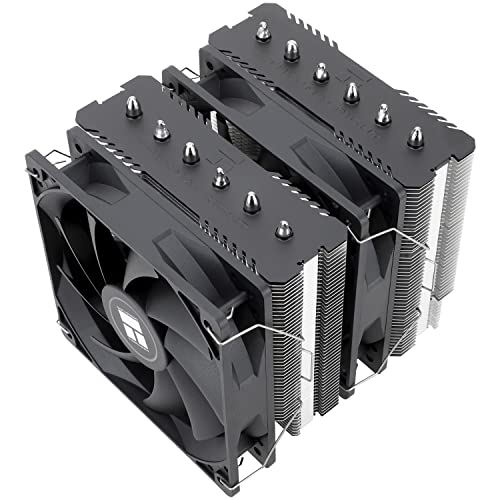
Air cooling remains the most common and affordable option for desktop computers. It uses a heatsink and fan to draw heat away from the CPU and move it into the surrounding air. Larger heatsinks with copper heat pipes improve thermal transfer and efficiency.
High-quality air coolers like the be quiet! Dark Rock Pro 4 or Noctua NH-D15 offer strong performance with low noise levels. These models use dual-tower designs and optimized fan blades to increase airflow while keeping sound output minimal.
To improve air cooling results, users should ensure proper case airflow. Intake and exhaust fans should balance air pressure to avoid trapped heat. Regular cleaning of dust from fans and vents also helps maintain consistent cooling performance.
| Factor | Impact on Cooling |
|---|---|
| Heatsink size | Larger surface area improves heat dissipation |
| Fan speed | Higher RPM increases airflow but may raise noise |
| Airflow direction | Balanced intake and exhaust reduce hotspots |
Liquid Cooling Options
Liquid cooling uses water or coolant to move heat away from the CPU more efficiently than air. Closed-loop systems, also called AIO liquid coolers, come preassembled with a pump, radiator, and fans. They are easy to install and require little maintenance.
Custom liquid cooling loops allow more flexibility and stronger performance but need careful planning and upkeep. They can cool not only the CPU but also the GPU and motherboard components. However, they cost more and take longer to set up.
According to WePC’s guide on reducing CPU temperatures, liquid cooling is ideal for high-performance systems or overclocked CPUs that generate more heat than air coolers can handle. Choosing a radiator size that matches the case and CPU heat output ensures the best results.
Choosing the Right CPU Cooler
Selecting the correct CPU cooler depends on the processor’s thermal design power (TDP), case size, and user goals. Mid-range CPUs often perform well with advanced air coolers, while high-end chips benefit from liquid cooling setups.
Budget, noise tolerance, and maintenance preferences also influence the choice. For example, air coolers are quieter and simpler, while liquid coolers handle heavy loads better. Users should check that the cooler fits their motherboard socket and case clearance before purchase.
Guides like Tech Guided’s list of cooling methods recommend matching the cooler type to the system’s power use and airflow design. Proper installation and thermal paste application further improve cooling efficiency and extend hardware lifespan.
Improving Case Airflow and Environment
Good airflow keeps internal components cool and stable. Clean cable routing, effective dust filtering, and a controlled room temperature help maintain consistent cooling and reduce stress on the CPU and GPU.
Managing Cables for Better Airflow
Cables block airflow when they hang loosely in front of fans or heat sinks. Organizing them behind the motherboard tray or along case edges allows air to move freely from intake to exhaust.
Builders can use Velcro straps, zip ties, or built-in cable channels to secure wiring. This reduces turbulence and helps maintain steady airflow paths.
When possible, use shorter cables or modular power supplies to limit clutter. After routing, check that no cables touch fan blades or obstruct vents. A tidy interior improves cooling efficiency and makes cleaning easier.
Using and Maintaining Dust Filters
Dust filters prevent particles from entering through intake fans. Clean filters keep airflow strong and stable. Clogged filters restrict air movement and raise internal temperatures.
Most cases include removable mesh or magnetic filters on the front, bottom, or top panels. Users should inspect and clean them monthly using compressed air or a soft brush.
If filters show heavy buildup, wash them gently with water and let them dry completely before reinstalling. Systems in dusty environments may benefit from slightly positive air pressure, as explained in PC Airflow Optimization: Improve Your Case Cooling Performance, which helps push air out through small openings instead of drawing dust in.
Controlling Ambient Temperature
Even with proper airflow, the ambient temperature around the PC affects cooling performance. A system in a warm or poorly ventilated room will run hotter regardless of fan setup.
Place the computer where air can circulate freely—avoid tight desks or enclosed cabinets. Keep the case at least a few inches from walls and heat sources.
If room temperatures often exceed 30°C, consider additional cooling such as a desk fan or improved air conditioning. As noted in How to Improve PC Case Airflow | Infologico.com, maintaining a cooler environment helps prevent thermal throttling and supports consistent performance under load.
Applying and Maintaining Thermal Paste
Proper application and upkeep of thermal paste keep the CPU running at safe temperatures and prevent performance loss from overheating. Using the right amount and pattern improves heat transfer between the processor and cooler, while regular maintenance ensures consistent thermal efficiency.
Importance of Thermal Paste
Thermal paste fills tiny air gaps between the CPU’s heat spreader and the cooler’s base. These gaps trap air, which is a poor heat conductor. The paste improves contact, allowing heat to move efficiently from the CPU to the cooler.
Without it, even high-end cooling systems can struggle. Excess heat can cause the CPU to throttle performance or shut down to avoid damage.
Thermal paste types include ceramic, metal-based, and liquid metal compounds. Ceramic and metal-based pastes are non-conductive and safer for most users. Liquid metal offers better performance but requires experience and caution because it can conduct electricity.
For most builders, using a standard non-conductive paste provides a good balance of safety and performance. Guides such as Tom’s Hardware’s application tutorial explain how correct coverage ensures stable temperatures and longer component life.
How to Apply Thermal Paste Correctly
Before applying new thermal paste, users should clean old residue with isopropyl alcohol and a lint-free cloth. A clean surface ensures proper adhesion and heat transfer.
For many CPUs, a pea-sized dot in the center works well. Intel’s newer chips may need one center dot and four small corner dots, according to Intel’s thermal paste guide.
When the cooler is mounted, pressure spreads the paste evenly across the surface. Users should avoid spreading it by hand, as this can introduce air bubbles.
After installation, testing CPU temperatures under load helps confirm proper application. If temperatures remain high, reapplying paste may be necessary. Regular checks every few years maintain consistent cooling efficiency.
Advanced Techniques for Temperature Control
Efficient CPU temperature control depends on fine-tuning voltage, clock speeds, and fan behavior. Adjusting these settings helps maintain stable performance while reducing heat and noise without requiring costly hardware upgrades.
Undervolting and Underclocking
Undervolting lowers the voltage supplied to the CPU, which reduces power draw and heat output. Many users apply this method to keep temperatures low while maintaining stable performance. Tools like Intel XTU or AMD Ryzen Master allow safe voltage adjustments with real-time monitoring.
Underclocking complements undervolting by slightly reducing the CPU’s clock speed. This step can extend component lifespan and lower fan speeds. It’s especially useful for laptops or compact systems where airflow is limited.
Key advantages:
- Lower CPU temperatures
- Reduced fan noise
- Improved energy efficiency
For detailed steps on safe voltage adjustment, users can review how to lower CPU temperature using BIOS or software tools.
Safe Overclocking Practices
Overclocking increases CPU clock speeds for better performance, but it also raises heat output. Users should increase speeds gradually and test stability after each change. Monitoring tools like HWMonitor or Core Temp help track temperature and voltage levels during stress tests.
A high-quality cooler—air or liquid—is essential. Applying fresh thermal paste and ensuring proper airflow are also critical. Systems with poor cooling risk thermal throttling or instability.
| Setting | Recommendation |
|---|---|
| Voltage increase | Keep minimal (0.01–0.05V increments) |
| Temperature limit | Below 85°C under load |
| Stress test duration | At least 30 minutes |
Guides such as Beat the Heat: A Comprehensive Guide to Lowering Your CPU Temperature explain how overheating can lead to throttling and system crashes if not managed correctly.
Balancing Performance and Fan Noise
Fan noise often increases when cooling systems work harder to manage rising temperatures. Adjusting fan curves helps balance cooling efficiency with noise control. Most motherboards include BIOS or software settings to customize fan speed based on temperature.
Users can create a fan curve that ramps up speed only when necessary. Neutral case pressure and clean airflow paths help fans work efficiently without excess noise.
To fine-tune fan behavior, WePC’s guide on CPU fan control recommends manually adjusting fan speed curves for quieter operation without sacrificing cooling performance.
Frequently Asked Questions
Managing CPU heat involves understanding safe temperature ranges, using effective cooling methods, and maintaining proper airflow. It also includes applying thermal paste correctly, monitoring for signs of overheating, and adjusting settings to prevent damage during high workloads or overclocking.
What are the optimal operating temperatures for high-performance CPUs?
Most modern CPUs run safely between 30°C and 70°C under normal loads. During gaming or heavy processing, temperatures up to 85°C are generally acceptable, depending on the model. According to Best CPU Temperature 2025: Guide to Safe Operating Ranges, staying below 85°C helps maintain performance and longevity.
Which cooling solutions are most effective for maintaining safe CPU temperatures?
Air coolers with large heat sinks and high-quality fans work well for most systems. For more demanding setups, AIO liquid coolers or custom water loops provide better thermal control. As explained in the Step-by-Step Guide to Resolving CPU Overheating Issues, correct installation and airflow balance are key to effective cooling.
How does thermal paste application affect CPU temperature management?
Thermal paste fills microscopic gaps between the CPU and cooler base, ensuring efficient heat transfer. Too little or too much paste can reduce performance. A thin, even layer or a small pea-sized drop in the center of the CPU is recommended, as discussed in the CPU Temperature Guide: Optimal Ranges & Cooling Tips.
Can overclocking impact CPU heat, and how can it be managed safely?
Overclocking increases voltage and processing speed, which raises heat output. Users can manage this safely by improving cooling systems, setting conservative overclock values, and monitoring temperatures with reliable software. The How to Lower CPU Temp article notes that balanced airflow and quality cooling are essential for stable overclocking.
What are the signs of CPU overheating and how can it be prevented?
Common signs include loud fan noise, frequent system crashes, or automatic shutdowns. Prevention involves cleaning dust, ensuring proper ventilation, and replacing thermal paste periodically. The Normal CPU Temperature guide explains that maintaining safe operating ranges helps avoid long-term hardware damage.
How does case airflow contribute to CPU temperature control?
Case airflow determines how efficiently heat exits the system. A good setup includes intake fans at the front or bottom and exhaust fans at the top or rear. As highlighted in Chill Out Your PC: 8 Effective Methods on How To Reduce CPU Temperatures, balanced airflow prevents heat pockets and supports consistent cooling performance.