
A drawing tablet helps turn digital creativity into a hands-on process. It allows us to sketch, paint, or edit photos directly on a screen or surface using a stylus. Artists, designers, and hobbyists use them because they give better control and accuracy than a mouse or touchpad.
When choosing a drawing tablet, we need to consider how we plan to use it. Key features like pressure sensitivity, screen size, display quality, and pen responsiveness can make a big difference. The best drawing tablet balances accuracy, comfort, and features that match our creative needs.
We spent hours studying specifications and testing popular models to find the best drawing tablets for different skill levels and budgets.
Best Drawing Tablets
We reviewed the top drawing tablets to help artists and designers find the right fit for their needs. Our picks include reliable options with accurate stylus control, durable screens, and strong performance for digital art. Below is our list of the best drawing tablets available now.
XP-Pen Artist13.3 Pro Drawing Tablet

This tablet offers solid performance and comfort for artists who want a responsive pen display without spending a lot.
Pros
- The pen responds smoothly and feels natural to use.
- The compact screen makes it easy to set up and move around.
- Custom shortcut keys and a red dial improve workflow speed.
Cons
- Needs to connect to a computer to function.
- The setup process can be confusing for beginners.
- The screen surface shows fingerprints easily.
We liked how consistent the pen felt across different programs. The tilt support handled shading and pressure changes well, which made sketching and painting feel more natural. The battery-free stylus also removed the worry of charging in the middle of a project.
The laminated display looks sharp and shows color accurately enough for illustration and design work. We noticed the bright screen helps during long sessions, though glare from lighting can be distracting.
We appreciated the physical dial and shortcut keys since they allow quick zoom or brush adjustments. Still, it takes some time to set up the buttons the way we like. Overall, the XP-Pen Artist13.3 Pro delivers dependable results at a fair price for anyone looking to upgrade from a basic tablet.
Apple iPad 11-inch (A16 chip)

We recommend this tablet for anyone who wants a reliable and smooth digital drawing and multitasking experience.
Pros
- Fast performance for drawing and daily use
- Sharp, bright display with accurate colors
- Works smoothly with Apple Pencil
Cons
- Apple Pencil sold separately
- Limited ports for accessories
- Slightly higher price than similar tablets
We tested the iPad 11-inch for sketching and editing, and it handled every task easily. The screen feels smooth with the Apple Pencil, giving precise control when shading or outlining. We noticed very little lag, even with high-resolution drawings.
The Liquid Retina display makes artwork look crisp and true to life. It’s bright enough to use near a window without glare, which helps during long drawing sessions. The design feels light and balanced, making it comfortable to hold for extended use.
We also used it for basic work like browsing, messaging, and watching videos, and it performed just as well. The A16 chip keeps everything fast, and the battery lasted most of the day. While it costs more upfront, the performance, build quality, and reliability make the Apple iPad 11-inch (A16 chip) a strong pick for digital artists and anyone who wants a premium tablet that can handle more than just drawing.
XENCELABS Pen Display 16 Lite
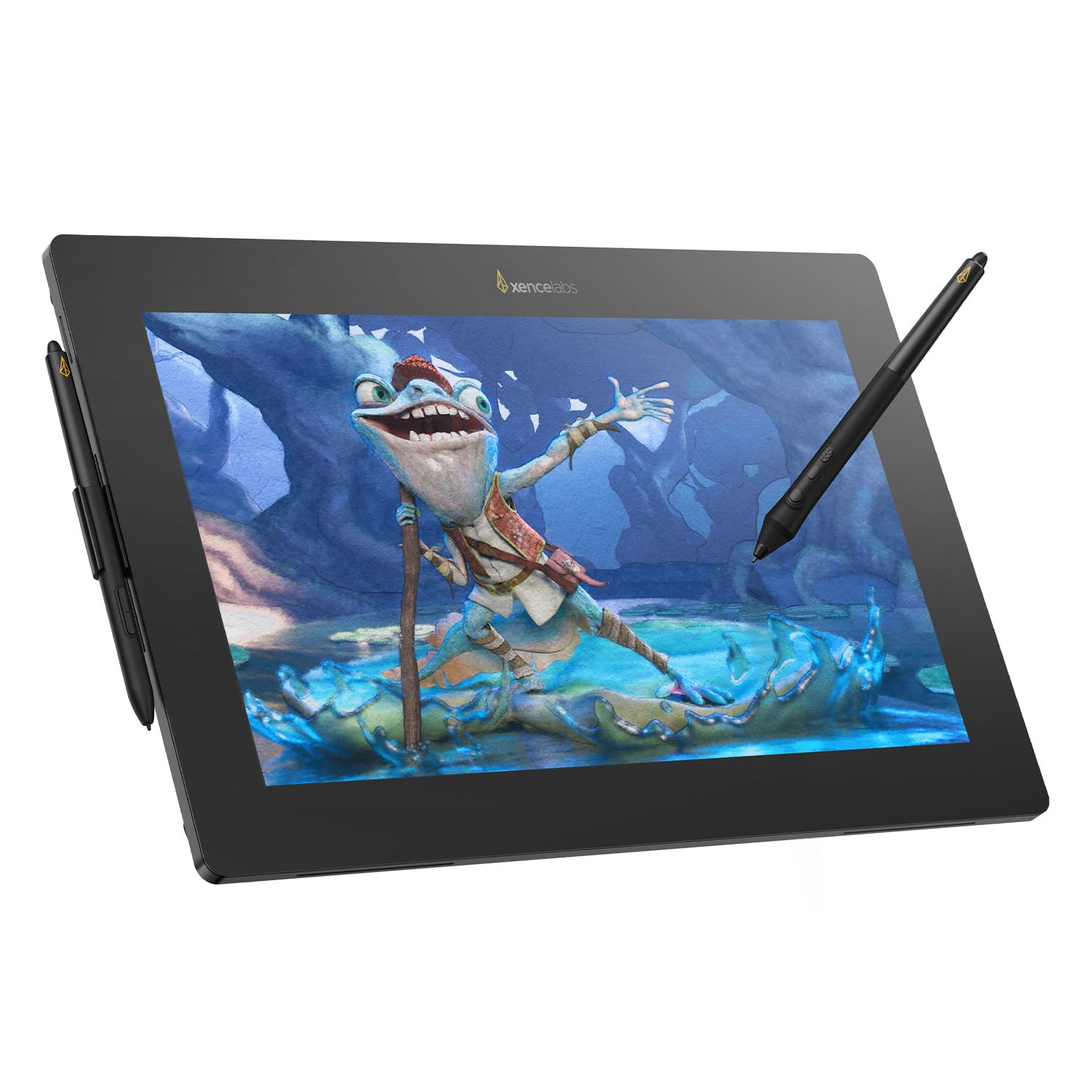
We recommend this tablet for artists who want a quiet, comfortable, and color-accurate display that feels close to drawing on paper.
Pros
- Smooth, paper-like surface gives precise pen control
- Solid color accuracy makes digital painting reliable
- Runs cool and silent for long creative sessions
Cons
- Slightly higher cost than entry-level models
- Limited shortcut buttons may slow some users
- Requires USB-C connection to function
We recently tested the XENCELABS Pen Display 16 Lite and were impressed by how natural the drawing experience felt. The etched glass has just enough texture to give resistance without feeling rough. The pen pressure curve made it easy to sketch light or heavy lines with accuracy.
Color looked true right out of the box. We didn’t need extra calibration to start illustrating or editing photos. The bright, glare-free screen helped keep our focus even under strong indoor lighting.
The slim build makes it easy to move around the workspace. The fanless design kept it quiet, even after hours of use. It’s clear this tablet is made for professionals who value comfort and precision in a compact package.
HUION Kamvas Pro 27 4K Drawing Tablet

This large, high-resolution drawing tablet suits digital artists who want professional color accuracy and a true pen-on-paper feel.
Pros
- Crisp 4K visuals with precise color accuracy
- Smooth and steady pen performance using PenTech 4.0
- Comfortable screen texture that eases long drawing sessions
Cons
- Heavy and not easy to move often
- Multi-touch support limited mainly to Windows
- Price sits on the higher side for casual users
We noticed right away how striking the 27-inch screen looks in real use. The image clarity made our sketches appear cleaner, and the wide color range helped keep tones faithful. It felt consistent across projects, especially when switching from concept art to photo editing.
The pen feedback came close to natural drawing. Pressure changes tracked well, and the minimal lag made line work feel responsive. After trying the anti-glare glass for several hours, our eyes stayed comfortable, which is a real plus during long sessions.
Cable management felt tidy thanks to the top-mounted ports, though setup took some desk space. We appreciated its versatility when used with different operating systems, though the full gesture control worked only on Windows at this time. For serious creative work, we found the Kamvas Pro 27 dependable and well-built.
Wacom Cintiq Pro 27

This premium pen display suits artists and designers who value color accuracy and natural pen control, though it comes at a high cost.
Pros
- Excellent pen accuracy and smooth tracking
- Vivid, lifelike color and high refresh rate
- Customizable keys and layouts improve workflow
Cons
- Very expensive compared to others
- Large size requires significant desk space
- Can get warm after long use
After trying the Cintiq Pro 27, we immediately noticed how natural the pen felt. It tracked every small motion without delay, which made sketching and shading smooth. The surface has a slight texture that helps the pen glide comfortably without feeling slippery.
The 4K display stood out with its sharp image and rich color. Working in photo editing and illustration, we appreciated how accurately it matched printed tones. The 120 Hz refresh rate kept pen strokes instant, reducing lag and eye strain during long sessions.
Setup took some effort since the display is large and fairly heavy. Once in place, though, it felt stable and professional. We also liked being able to attach accessories using the mount points. Overall, the Cintiq Pro 27 offers a top-tier drawing experience, but its price and space demands make it better for committed artists than casual users.
Buying Guide
When we choose a drawing tablet, we first look at how we plan to use it. Some of us may need a large active area for detailed work, while others prefer smaller, portable options. The right size depends on comfort and desk space.
We also check pressure sensitivity and pen accuracy. More pressure levels allow smoother shading and better line control. A pen that tracks precisely helps us draw with confidence.
Screen type matters too. A tablet with a built-in display lets us draw directly where we see our work, while a non-display tablet connects to a computer screen. Both have benefits depending on our workflow and budget.
| Feature | Why It Matters | What to Consider |
|---|---|---|
| Pen Pressure | Controls line thickness and shading | Look for high pressure sensitivity |
| Screen Size | Affects comfort and accuracy | Choose a size that fits our workspace |
| Resolution | Impacts image sharpness | Higher resolution gives clearer detail |
| Connectivity | Determines setup ease | Options include USB, Bluetooth, or wireless |
| Compatibility | Ensures software support | Check if it works with our computer or apps |
We also think about extra features like shortcut buttons, tilt support, and battery-free pens. These can make drawing faster and reduce hand strain.
Before we decide, we compare specifications and read product details carefully. Balancing features, price, and comfort helps us find a tablet that supports our art and workflow.
Frequently Asked Questions
We focus on tablet features that affect ease of use, accuracy, and creative performance. Our answers address how display quality, brand reliability, compatibility, and cost influence the drawing experience.
What features should I look for in a drawing tablet for beginners?
We suggest looking for pressure sensitivity of at least 2,048 levels, responsive pen input, and a comfortable drawing surface. Beginners often benefit from tablets that include setup guides and have easy-to-use software.
Shortcut keys and customizable buttons can help speed up workflow. A smaller size is usually enough for learning, as it’s easier to control and costs less.
Which drawing tablets are considered best for professional animators?
Professionals need accurate color, low pen latency, and large active areas. Tablets like the Wacom Cintiq Pro and Huion Kamvas Pro offer precise styluses and strong performance for frame-by-frame animation.
We find that higher-end models support advanced pressure curves and tilt detection, which gives artists tighter control over line work.
How important is screen quality in a drawing tablet for detailed artwork?
Screen quality matters a lot for detail and color accuracy. A high-resolution display with good brightness and wide color coverage helps artists see subtle gradients and fine lines.
Matte screens can also reduce glare for better comfort during long sessions.
What are the most reputable brands for drawing tablets?
We trust brands like Wacom, Huion, XP-Pen, and Gaomon because of their consistent performance and reliable customer support.
These companies offer a range of models for every skill level, and replacement parts like pens or nibs are easy to find.
Can you recommend a drawing tablet that works well with PCs?
Many tablets support Windows without issues. We recommend the Wacom Intuos Pro and XP-Pen Deco Pro for smooth driver integration and stable performance.
Both models allow USB or Bluetooth connections and have drivers that work with major drawing software such as Photoshop and Clip Studio Paint.
Are there any affordable drawing tablets with screens for entry-level artists?
Yes, options like the Huion Kamvas 13 and XP-Pen Artist 12 include quality displays at reasonable prices. They offer solid color reproduction and come with styluses that support tilt and pressure.
These models provide a good starting point for those who want the feel of drawing directly on the screen without spending too much.







