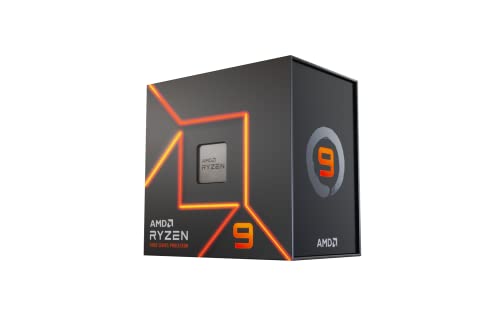
How to Put together the Best CPU and GPU: Building a gaming PC that runs smoothly starts with pairing the right CPU and GPU. These two parts work together to process game logic and render visuals. The best CPU and GPU combo balances performance so neither part slows the other down, giving consistent frame rates and smooth gameplay. When matched well, this setup delivers the most value for every dollar spent.
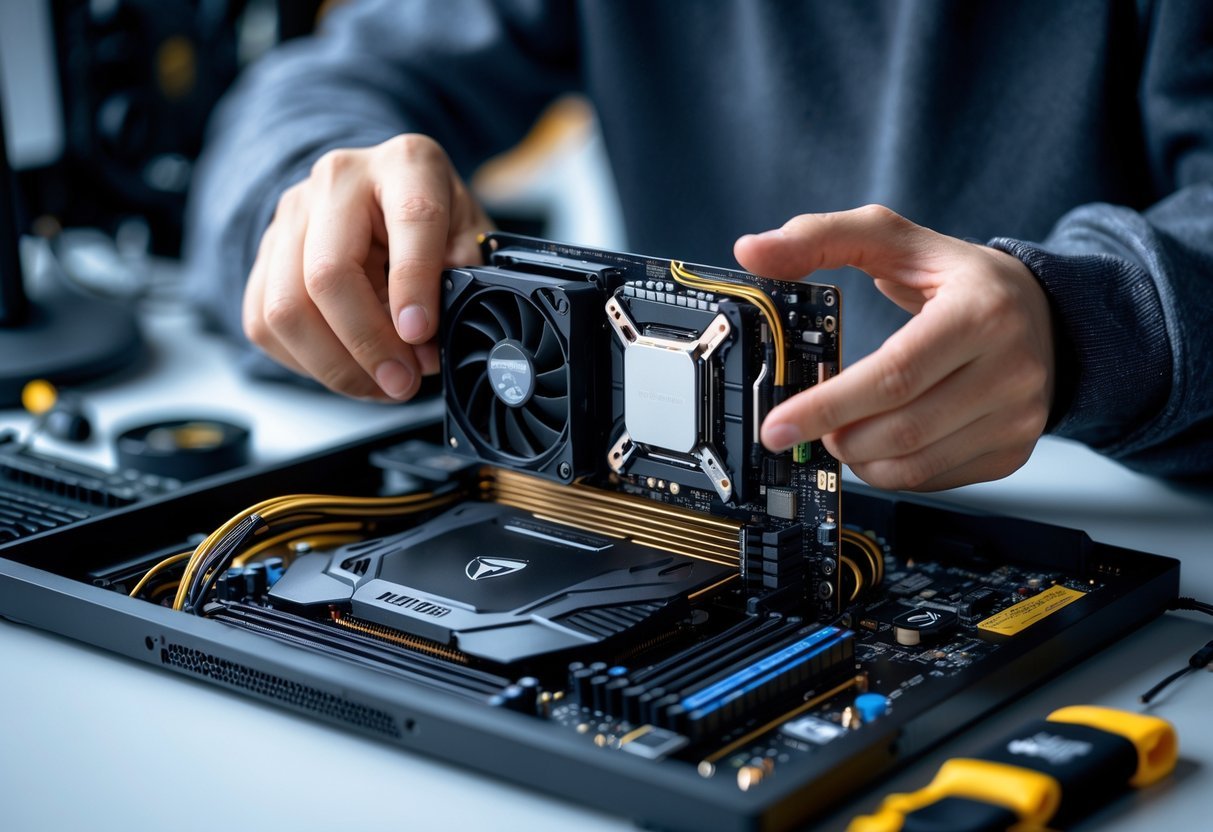
Many gamers focus on the graphics card, but the processor plays an equal role. A strong CPU prevents lag in CPU-heavy games, while a capable GPU handles the demanding visuals of modern titles. Finding that balance depends on resolution, refresh rate, and the types of games played. Guides like Perfect CPU-GPU Pairings 2025 explain how to avoid bottlenecks and maximize performance.
Choosing wisely ensures your system stays ready for future releases without constant upgrades. With the right combination, every frame feels faster, every world looks sharper, and every build performs exactly as intended.
Key Takeaways
- Balanced CPU and GPU pairings prevent performance bottlenecks.
- Smart hardware choices match budget, resolution, and game type.
- Testing and tuning ensure smooth and efficient gaming performance.
Understanding the Importance of a Balanced CPU and GPU Combo
A well-balanced CPU and GPU combo ensures that neither component limits the other. Matching their capabilities allows a gaming system to deliver high frame rates, smooth gameplay, and efficient use of hardware without wasted performance or unnecessary cost.
Why Matching CPU and GPU Matters for Gaming Performance
The CPU and GPU share the workload in every game. The CPU handles logic, physics, and background tasks, while the GPU renders images and effects. When one is significantly weaker, performance suffers.
A balanced setup ensures both components operate near their full potential. For example, a mid-range CPU like the Ryzen 5 7600 pairs well with a mid-tier GPU such as the RTX 4070 to maintain consistent performance at 1440p.
Modern games rely on both single-threaded and multi-threaded CPU power. Strong single-core performance helps in fast-paced titles, while more cores improve multitasking and streaming. Builders can find tested pairings that prevent performance gaps in guides like Perfect CPU-GPU Pairings 2025.
Tip: Match your CPU and GPU based on target resolution and refresh rate, not just price.
Identifying and Avoiding CPU and GPU Bottlenecks
A bottleneck happens when one component limits the other’s performance. A CPU bottleneck appears when the processor cannot keep up with the GPU, while a GPU bottleneck occurs when the graphics card cannot render frames fast enough.
Gamers can identify bottlenecks by monitoring CPU and GPU usage. If the CPU runs at 100% while the GPU idles, the system has a CPU bottleneck. Balanced usage between both components indicates an efficient setup.
To avoid bottlenecks, builders should check compatibility using tools like the Bottleneck Calculator. Choosing the right combination—such as an Intel i5-12400F with an RTX 4060—keeps performance steady without overpaying for unused potential.
Common causes of bottlenecks:
- Overpowered GPU with entry-level CPU
- Slow RAM or storage speeds
- Inadequate cooling or power delivery
How Frame Rates and Smooth Gameplay Are Affected
Game smoothness depends on how consistently the CPU and GPU deliver frames. When balanced, both components maintain stable frame rates that match the monitor’s refresh rate.
A strong CPU prevents stuttering by feeding data to the GPU efficiently. A capable GPU ensures high-quality visuals without frame drops. For instance, the Ryzen 7 9800X3D with an RTX 5090 achieves near-zero bottlenecks and stable 4K performance, as noted in Perfect CPU-GPU Balance 2025.
Frame rate consistency matters more than peak FPS. Fluctuations cause lag and uneven motion, especially in competitive games. Balanced hardware helps maintain consistent frame pacing for smoother gameplay.
| Resolution | Recommended Focus | Example Balanced Pair |
|---|---|---|
| 1080p | CPU performance | Ryzen 5 5600 + RTX 4060 |
| 1440p | Equal CPU/GPU balance | Ryzen 5 7600 + RTX 4070 |
| 4K | GPU strength | Ryzen 7 9800X3D + RTX 5090 |
Choosing the Right CPU for Gaming
A strong gaming CPU balances high clock speeds, multiple cores, and compatibility with the latest platforms. It should match the performance of the graphics card to prevent bottlenecks and support modern features like fast memory and advanced cache systems.
Key CPU Features for Gaming PCs
Modern gaming CPUs rely on high single-core performance and fast clock speeds. While games are becoming better at using multiple cores, most still benefit more from strong per-core performance. CPUs like the Intel Core i7 and AMD Ryzen 7 7800X3D deliver excellent results in this area.
Cache size plays a large role in gaming smoothness. AMD’s 3D V-Cache technology in chips such as the Ryzen 7 7800X3D helps reduce latency and boost frame rates in CPU-heavy titles.
Thermal performance also matters. Many AMD processors, like the Ryzen 5 5500, include a Wraith Stealth cooler, which works well for moderate gaming builds. However, higher-end CPUs often need aftermarket coolers for stable temperatures under load.
Best Gaming CPUs by Budget and Performance
For budget builds, the Ryzen 5 5500 and Intel Core i5-12400 offer strong value. They handle 1080p gaming smoothly and pair well with mid-range GPUs.
In the mid-range, the Ryzen 5 7600 and Ryzen 5 7600X stand out for their efficiency and support for DDR5 memory. These chips perform well in both gaming and multitasking, making them ideal for most players.
At the high end, gamers seeking top performance can look at the Ryzen 7 7800X3D or Intel Core i7-14700K. Both excel in delivering high frame rates at 1440p and 4K. The Ryzen 7 7800X3D, in particular, benefits from its large cache, offering consistent performance in demanding titles like Cyberpunk 2077 and Warzone.
Understanding Sockets and Platform Compatibility
Choosing the right CPU also means ensuring compatibility with the motherboard socket and platform. AMD’s latest processors use the AM5 socket, found on the AM5 platform, which supports PCIe 5.0 and DDR5 memory for future upgrades.
Intel’s current Core i5, i7, and i9 chips use the LGA 1700 socket, compatible with 600- and 700-series motherboards. Buyers should confirm BIOS support before installation.
A quick comparison:
| Brand | Current Socket | Memory Support | Upgrade Path |
|---|---|---|---|
| AMD Ryzen | AM5 | DDR5 | Long-term |
| Intel Core | LGA 1700 | DDR4 / DDR5 | Shorter-term |
Matching the CPU and platform correctly ensures stable performance and easier upgrades later.
Selecting the Best GPU for Gaming Needs
Choosing the right graphics card affects frame rates, image quality, and long-term performance. A well-matched GPU ensures smooth gameplay, supports modern visual features, and fits within a system’s power and budget limits.
Key GPU Specifications for Gaming
When comparing GPUs, focus on core count, clock speed, VRAM, and power draw. These directly affect how well a card handles demanding games. For example, the NVIDIA RTX 3060 and AMD RX 6600 both deliver strong 1080p performance but differ in memory size and efficiency.
A higher boost clock often improves frame rates, though differences under 100 MHz rarely matter in real gameplay. VRAM determines how well high-resolution textures load—8 GB is ideal for 1080p, while 12 GB or more benefits 1440p and 4K gaming.
Check the GPU’s architecture and bus width too. Cards like the RTX 4070 Ti use newer architectures that improve ray tracing and DLSS performance. For AMD users, the RX 7900 XT offers strong rasterization and better value at higher resolutions.
| Resolution | Recommended VRAM | Example GPUs |
|---|---|---|
| 1080p | 8 GB | RTX 3050, RX 6600 |
| 1440p | 12 GB | RTX 3060, RTX 4060 |
| 4K | 16 GB+ | RTX 4090, RX 7900 XT |
Best Graphics Cards for Different Resolutions
Performance scales with resolution. At 1080p, midrange cards like the RTX 3050 or RX 6600 deliver smooth gameplay without high power use. These are ideal for eSports and older titles.
For 1440p, the RTX 3060 and RTX 4060 balance cost and capability. They handle modern games at high settings while keeping power consumption reasonable. The RX 6700 XT is a strong AMD alternative with more VRAM at a similar price.
At 4K, GPUs like the RTX 4090 and RX 7900 XT shine. They support advanced ray tracing, high refresh rates, and future-proof performance. According to testing from Tom’s Hardware, these cards maintain stable frame rates even in demanding titles.
VRAM, Boost Clock, and Ray Tracing Explained
VRAM stores textures and assets so the GPU can render scenes quickly. Insufficient VRAM can cause stuttering or blurry textures. For most players, 8–12 GB is enough, but 16 GB helps at 4K or when using high-resolution texture packs.
The boost clock shows the maximum speed a GPU can reach under load. While higher numbers can improve performance, real-world gains depend on cooling and power limits. Efficient cooling helps the GPU sustain its boost speed longer.
Ray tracing simulates realistic lighting and reflections. NVIDIA’s RTX series and AMD’s RX 7000 series both support it, though NVIDIA cards like the RTX 4070 Ti and RTX 4090 perform better with ray tracing enabled. Features like DLSS and FSR help offset performance loss by using AI upscaling for smoother frame rates.
Top CPU and GPU Combos for Every Budget
Balanced CPU and GPU combos help gamers avoid performance bottlenecks, maintain stable frame rates, and get the most value from their hardware. The right pairing depends on resolution, game type, and price-to-performance goals.
Best Budget CPU and GPU Combos for 1080p Gaming
Budget builds focus on smooth 1080p gaming without overspending. A strong example is the Ryzen 5 7600 paired with the Radeon RX 7600, offering solid frame rates in modern games at a reasonable cost. This combo provides efficient power use and supports features like FSR 3 upscaling for extra performance.
The Intel Core i5-13400F and GeForce RTX 4060 also deliver a good price-to-performance ratio. They handle most AAA games at high settings while staying under moderate power and cooling demands.
| Combo | Expected Performance | Approx. Price (USD) |
|---|---|---|
| Ryzen 5 7600 + RX 7600 | 100–150 FPS at 1080p | $400–$450 |
| Core i5-13400F + RTX 4060 | 90–140 FPS at 1080p | $500–$550 |
Gamers can explore more tested options for budget-friendly setups in the 10 Best Budget CPU and GPU Combos for Gamers on a Tight Budget in 2025.
Recommended Mid-Range Combos for 1440p Gaming
Mid-range systems target higher resolutions and better visual quality. A standout pairing is the Ryzen 7 7800X3D with the GeForce RTX 4070 Super, known for strong 1440p performance and efficiency. This setup balances CPU speed and GPU rendering power, reducing bottlenecks in demanding titles.
Another capable option is the Intel Core i7-14700K with the Radeon RX 7900 GRE. It handles 1440p ultra settings smoothly and supports high-refresh-rate monitors.
| Combo | Frame Rate (1440p) | Approx. Price (USD) |
|---|---|---|
| Ryzen 7 7800X3D + RTX 4070 Super | 100–160 FPS | $700–$750 |
| Core i7-14700K + RX 7900 GRE | 90–150 FPS | $850–$900 |
For tested real-world results, see the 12 Best CPU and GPU Combo 2025: Balanced Builds Tested.
High-End Pairings for 4K Gaming Performance
High-end gaming rigs aim for maximum detail and smooth 4K gaming performance. The Ryzen 9 9950X3D combined with the GeForce RTX 5090 offers top-tier results, delivering over 100 FPS in many AAA games with ray tracing enabled. This combo suits enthusiasts who want future-ready performance.
For those preferring Intel, the Core i9-14900K with the Radeon RX 7900 XTX provides excellent 4K visuals and multitasking power. Both setups benefit from fast DDR5 memory and strong cooling systems.
| Combo | 4K FPS Range | Approx. Price (USD) |
|---|---|---|
| Ryzen 9 9950X3D + RTX 5090 | 90–120 FPS | $2,500–$2,700 |
| Core i9-14900K + RX 7900 XTX | 80–110 FPS | $1,800–$2,000 |
More details on high-end pairings appear in Best CPU-GPU Combos for Gaming in 2025: No Bottlenecking, All Frags.
Optimizing Your Gaming PC Build
A well-balanced gaming PC depends on compatible hardware, stable power delivery, and efficient thermal control. Each part must work together to maintain consistent performance, especially when pushing components under heavy loads or during overclocking.
Choosing Compatible Motherboards and Platforms
Selecting the right motherboard ensures the CPU and GPU perform at their best. Users should match the CPU socket type and chipset with their chosen processor. For example, an AMD Ryzen 7 7800X3D fits an AM5 board, while Intel’s i7-14700K needs an LGA 1700 socket.
Modern boards feature PCIe 4.0 or PCIe 5.0 slots, which improve GPU bandwidth and storage speeds. Choosing a board with reinforced PCIe slots helps support heavier GPUs.
It’s also important to check memory compatibility. DDR5 RAM offers faster data rates and better efficiency than DDR4, but it requires a newer platform. Builders can check compatibility and performance balance using tools like the Bottleneck Calculator.
Cooling Solutions and Power Consumption
Effective cooling solutions maintain stable temperatures and prevent throttling. Air coolers are simple and reliable, while liquid cooling systems offer better heat dissipation for high-end CPUs and GPUs.
When selecting a cooler, users should consider case size, fan clearance, and noise levels. A good airflow setup includes at least one intake and one exhaust fan to keep components at safe operating temperatures.
Power supply units (PSUs) also play a key role. A 750W to 850W PSU with an 80 Plus Gold rating supports most modern gaming builds. Systems using GPUs like the RTX 4090 or RX 7900 XTX may need higher wattage to handle peak power consumption safely.
Overclocking for Extra Performance
Overclocking can boost frame rates and reduce latency, but it must be done carefully. Users can raise CPU or GPU clock speeds in small increments while monitoring temperatures and system stability.
Motherboards with strong VRMs and good cooling handle overclocking better. BIOS tools or software utilities from brands like ASUS or MSI simplify the process.
It’s best to stress test the system after each adjustment. Stable overclocking delivers extra performance without risking damage or overheating, keeping the gaming PC fast and reliable for long sessions.
Testing and Benchmarking Your CPU and GPU Combo
Accurate testing helps users see how well their CPU and GPU work together under real gaming conditions. Measuring performance across different titles and workloads ensures the system runs efficiently and avoids hardware mismatches.
Using Gaming Benchmarks to Measure Performance
Gaming benchmarks show how a system performs under repeatable, controlled tests. Tools like 3DMark, Cinebench, and in-game benchmarks from titles such as Cyberpunk 2077 or Fortnite give consistent performance data.
Users can record average FPS, 1% low FPS, and frame time stability to identify weak spots. Comparing these results with public databases or using a bottleneck calculator helps confirm if the CPU or GPU limits performance.
For mixed workloads, creators should also test rendering or encoding speeds in software like Blender or Premiere Pro. This ensures the setup performs well beyond games, especially for content creation.
| Metric | Description | Ideal Result |
|---|---|---|
| Average FPS | Overall frame rate | 60+ for smooth play |
| 1% Low FPS | Minimum frame consistency | Above 45 FPS |
| Frame Time | Frame delivery stability | Even frame pacing |
Real-World Gaming Examples and Popular Titles
Benchmarking should include real gameplay from popular titles. Cyberpunk 2077 stresses both CPU and GPU with complex lighting and AI. Fortnite and Valorant focus more on CPU performance, especially at high frame rates common in esports titles.
Testing across genres provides a balanced view. For example, Cyberpunk 2077 at ultra settings highlights GPU load, while Valorant shows how well the CPU handles high refresh gameplay.
Gamers can compare results using tested pairings from balanced CPU and GPU combos to see how their setup aligns with verified performance tiers. Running these tests at 1080p, 1440p, and 4K helps identify scaling limits and ensures the hardware suits the target resolution.
Monitoring for Bottlenecks and Performance Issues
Monitoring tools such as MSI Afterburner, HWMonitor, or GPU-Z display CPU and GPU usage in real time. When one component runs at 100% while the other stays low, a bottleneck exists.
A PC bottleneck calculator can estimate imbalance before building or upgrading, but real testing confirms it. Users should also track temperatures, clock speeds, and power draw to spot thermal throttling or instability.
Keeping the system updated with the latest drivers and BIOS versions improves consistency. Adjusting graphics settings or enabling features like DLSS and FSR can balance workloads, ensuring both CPU and GPU operate efficiently during gaming and content creation.
Frequently Asked Questions
Selecting the right CPU and GPU for gaming depends on performance balance, system compatibility, and long-term value. Build quality, cooling, and upgrade potential also play major roles in ensuring a smooth and reliable gaming experience.
What are the top factors to consider when pairing a CPU with a GPU for high-performance gaming?
Gamers should look at core count, clock speed, and GPU power. A strong CPU prevents frame drops, while a capable GPU handles demanding visuals. Pairing parts like the Ryzen 7 5800X3D with an RTX 4070 Super creates balanced performance, according to bottlenecktool.com.
How do I balance my budget between a CPU and GPU to achieve the best gaming experience?
Spending more on the GPU usually delivers better results since most modern games rely heavily on graphics processing. However, pairing a midrange GPU with a weak CPU can cause slowdowns. Tools like the PC Builds Bottleneck Calculator help identify if the balance is right for the budget.
What are the compatibility considerations for selecting a CPU and GPU for a gaming build?
Compatibility depends on socket type, chipset support, and power supply capacity. The motherboard must match the CPU socket, and the power supply should handle the GPU’s wattage. Checking GPU size against case dimensions prevents clearance issues.
Can you recommend strategies for future-proofing a gaming PC with regards to CPU and GPU upgrades?
Choosing newer-generation parts with modern standards like PCIe 5.0 and DDR5 memory extends system longevity. They should also leave headroom for future GPU upgrades. As noted by bottlenecktool.com, pairing a slightly stronger GPU ensures better performance over time.
How does CPU bottlenecking affect GPU performance in gaming, and how can it be minimized?
A CPU bottleneck occurs when the processor limits the GPU’s output. This leads to high CPU usage and low GPU utilization. Minimizing it involves selecting a CPU that matches the GPU’s performance level and monitoring usage with tools like the Bottleneck Calculator.
What is the importance of thermal management when running high-end CPUs and GPUs in gaming rigs?
High-performance parts generate significant heat. Efficient air or liquid cooling prevents thermal throttling, which can reduce frame rates. Proper case airflow and quality thermal paste help maintain safe temperatures during long gaming sessions.
Best Seller: